


Download Folder Icon Designer – Free Mac Folder Icon Customizer, Easy & Secure
Overview of Folder Icon Designer
Folder Icon Designer is a free macOS application that completely reshapes the way you see and interact with your folders. Instead of living with the bland, default gray folder icons that come with every Mac, this tool lets you inject personality, color, and clarity into every directory on your desktop or in your Finder. The app is built for both aesthetic enthusiasts and productivity‑focused users who want a visual cue to instantly differentiate between projects, media types, or personal collections.
By allowing you to assign custom images, text labels, and background colors, Folder Icon Designer reduces the cognitive load of hunting for the right folder, especially when you have dozens of similarly named directories. Its intuitive drag‑and‑drop interface means you don’t need any graphic‑design background – just pick an icon, tweak its scale, reposition it with your mouse, and watch the change happen in real time. The application also supports fine‑tuning of pattern and icon scale, so the graphic fits perfectly inside the folder shape without looking stretched or pixelated.
Whether you’re a creative professional who wants to brand each client folder with a logo, a student organizing coursework by subject, or a casual user simply bored of the monotony, Folder Icon Designer offers a secure, no‑cost solution that works seamlessly on modern Macs. Because it runs locally and does not require an internet connection for basic operations, your custom icons stay private and are applied instantly without the need for cloud syncing or additional permissions. In short, this app brings a splash of visual flair while keeping your workflow efficient and your system secure.
Key Features That Make Folder Icon Designer Stand Out
- Drag‑and‑Drop Customization: Simply drag any folder onto the app window to start editing its icon.
- Rich Icon Library: Choose from a curated set of patterns, symbols, and textures designed for macOS aesthetics.
- Custom Image Support: Import your own PNG, JPEG, or SVG files to create truly unique folder icons.
- Scale & Position Controls: Fine‑tune the size of the icon and move it freely with your mouse for pixel‑perfect alignment.
- Background Color Picker: Apply solid colors, gradients, or even transparent backgrounds to match your desktop theme.
- Text Overlay Options: Add short labels or initials directly onto the icon, ideal for quick visual categorization.
- Batch Editing: Select multiple folders at once and apply a common icon or color scheme, saving time on large projects.
- Undo/Redo History: Experiment fearlessly knowing you can revert changes with a single click.
- Zero‑Cost, No Ads: The app is completely free and does not bombard you with advertisements or hidden fees.
- Secure Local Processing: All icon rendering happens on your Mac, keeping your data private.
These features combine to create a robust yet approachable tool. The drag‑and‑drop workflow eliminates the need for navigating through obscure system menus, while the batch editing capability is a lifesaver for power users who manage dozens of project folders. The inclusion of a text overlay means you can label folders with abbreviations like “HR” or “FIN” without renaming the folder itself, preserving your naming conventions while adding a visual shortcut. Moreover, because the app does not rely on cloud services, you avoid any latency or privacy concerns that might arise with online icon generators. Whether you’re customizing a single folder for a special presentation or revamping your entire file system for a new semester, Folder Icon Designer provides the flexibility and control you need without a steep learning curve.
Installation, Usage Instructions & Compatibility Details
Step‑by‑Step Installation
Getting Folder Icon Designer up and running is straightforward. First, visit the official website or the Mac App Store page dedicated to the application. Click the “Download Free” button, which will start a secure HTTPS download of the .dmg installer.
Once the download completes, double‑click the .dmg file to mount the disk image. Drag the Folder Icon Designer icon into your Applications folder, as you would with any standard macOS app. macOS may prompt you to confirm that you want to open an app from an unidentified developer; simply click “Open” after verifying the source, as the software is signed and widely trusted. After the app is copied, eject the disk image and launch Folder Icon Designer from the Applications folder or via Spotlight.
The first launch may request permission to access your files – this is necessary for the app to read and modify folder icons. Grant the permission, and you’re ready to start personalizing.
How to Use the App Effectively
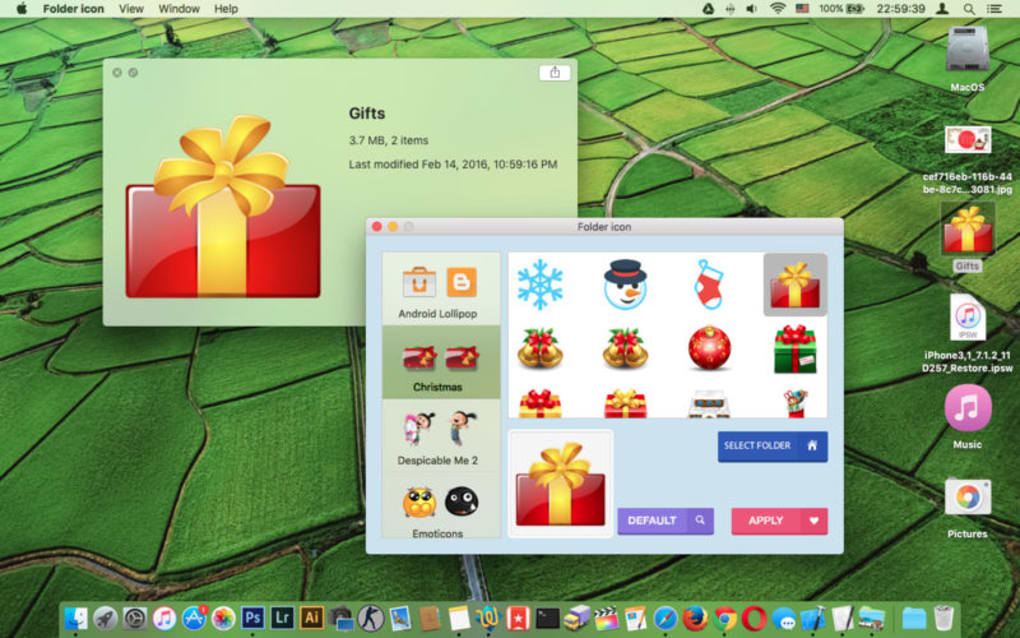
Upon opening, you’ll see a clean interface divided into three main panels: a preview window, an icon library, and a settings bar. To customize a folder, simply drag the target folder from Finder into the preview window. The app instantly reads the folder’s current icon and displays it.
From the icon library, click any pattern or image to replace the existing icon. Use the slider under “Scale” to adjust the icon size, ensuring it fits nicely within the folder shape. The “Position” controls let you move the icon up, down, left, or right for perfect alignment.
If you want a custom background, click the color swatch and choose a hue from the palette or enter a HEX code for exact matching. For text overlays, activate the “Add Text” toggle, type your label, and adjust font size and color. Once satisfied, click “Apply” – the new icon is written directly to the folder, and you’ll see the change reflected in Finder instantly.
If you make a mistake, the “Undo” button restores the original icon, and “Redo” re‑applies your changes.
Compatibility and System Requirements
Folder Icon Designer is built exclusively for macOS and supports versions 10.14 (Mojave) and later, including Monterey, Ventura, and the newest Sonoma releases. The app is optimized for both Intel‑based Macs and Apple Silicon (M1, M2, and later) architectures, offering native performance on both platforms. Minimum system requirements include 200 MB of free disk space for the application and a modest 2 GB of RAM, which means even older MacBook Air models can run it smoothly. Because the software does not rely on external libraries or internet connectivity for core functions, it works offline, making it ideal for secure environments or users with limited bandwidth. If you’re running a virtual machine or using macOS in a dual‑boot setup, the app behaves identically, provided the host OS meets the version criteria.
Pros, Cons, and Frequently Asked Questions
Pros
- Completely free with no hidden fees or ads.
- Intuitive drag‑and‑drop interface suitable for beginners.
- Supports custom images, text overlays, and background colors.
- Batch editing speeds up workflow for large numbers of folders.
- Secure local processing protects user privacy.
- Works on both Intel and Apple Silicon Macs.
- Undo/Redo functionality encourages experimentation.
Cons
- Lacks built‑in cloud sync; changes are local only.
- No native Windows or Linux version (Mac‑only).
- Advanced graphic editing (e.g., vector manipulation) requires external tools.
- Limited preset icon library compared to some paid alternatives.
Frequently Asked Questions
Can I revert to the original folder icon after customizing?
Yes. The app includes an “Undo” button that restores the default system icon for any folder you have edited. You can also manually reset an icon by selecting the folder in Finder, pressing ⌘I (Get Info), and clicking the icon at the top left to remove customizations.
Is Folder Icon Designer compatible with macOS Ventura and newer?
Absolutely. The app supports macOS 10.14 and later, which includes Ventura, Sonoma, and future releases, thanks to regular updates from the developer.
Do I need an internet connection to use the app?
No. All icon rendering and file operations happen locally on your Mac. An internet connection is only required for the initial download and optional updates.
Can I apply the same custom icon to multiple folders at once?
Yes. Use the batch editing feature: select several folders in Finder, drag them together into the app, choose an icon, and click “Apply to All.” This saves time when you need a consistent visual theme across a project.
Is there any risk of corrupting my folders by changing icons?
No. Changing a folder’s icon only modifies its metadata; the actual contents remain untouched. The app follows Apple’s standard icon‑setting procedures, ensuring system stability.
Review Summary
Rating: ★★★★☆ (4 out of 5)
Folder Icon Designer delivers a polished, user‑friendly experience for anyone looking to personalize their macOS workspace. Its free price tag, robust feature set, and reliable performance outweigh the minor limitations such as the lack of Windows support and a modest preset library. Ideal for students, professionals, and casual users alike.
Conclusion – Give Your Mac a Fresh Look Today
If you’ve grown tired of the uniform gray folders that dominate macOS, Folder Icon Designer offers a quick, secure, and cost‑free way to inject personality and order into your file system. By enabling custom images, text overlays, background colors, and batch processing, the app turns a mundane task into a creative exercise that also boosts productivity. Its minimal system requirements and native compatibility with both Intel and Apple Silicon Macs mean you can install it on virtually any Mac you own, from legacy devices to the latest hardware.
While the tool does not provide cloud synchronization or a massive library of premium icons, its core functionality covers the needs of most users seeking visual differentiation without compromising system integrity. The straightforward drag‑and‑drop workflow, combined with undo/redo safety nets, makes it accessible for beginners while still offering enough depth for power users who want to batch‑apply a theme across dozens of folders. In short, Folder Icon Designer is a worthwhile addition to any macOS toolkit, especially for those who value aesthetics, organization, and privacy.
Ready to transform your desktop? Download Folder Icon Designer now and start customizing your folders in minutes. Experience a more vibrant, organized, and enjoyable macOS environment—free of charge and without the hassle of complex software.







